What happens to a dash cam after you switch off the engine: does it keep recording, wait for a bump, or go quiet to save power? If you want a dash cam with parking mode explained in plain terms, the key is this: parking mode combines a recording strategy with a way to power the camera while the vehicle is off.
It’s reasonable to want footage of a parking-lot incident without risking a vehicle battery that’s too low to start. The right setup depends on what the camera can detect, how it records a trigger, and how it receives power with the ignition off. This guide explains the differences between impact-triggered, time-lapse, continuous, and buffered recording, along with hardwiring and low-voltage protection. It also covers what parking mode may miss and how professional dash camera integration can help create a neat, dependable setup. By the end, you’ll have a clearer idea of which recording and power approach fits where and how you park.
Key Takeaways
- Dash cam parking behavior varies by camera, settings, and how it’s powered after the ignition is off.
- Compare event-triggered, time-lapse, and continuous recording based on your parking habits and coverage needs.
- Understand how recording triggers, power, and saved footage work together when choosing parking mode.
- Plan your setup around where you park, how long the vehicle stays there, and which areas you want the camera to cover.
- Professional installation can help integrate power and camera placement into a tidy, dependable vehicle setup.
What does dash cam parking mode do when your car is off?
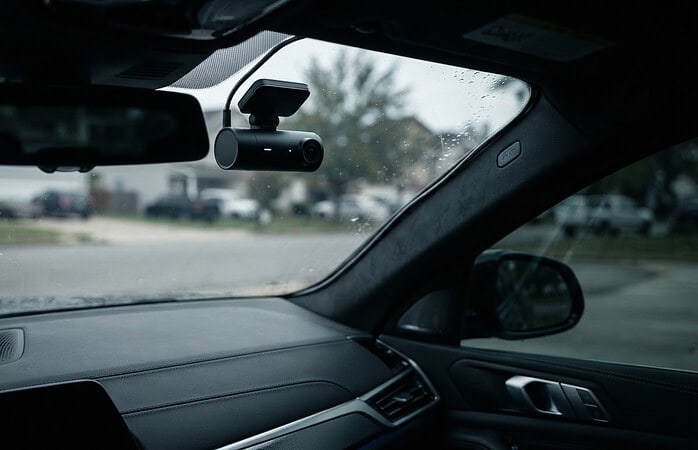
Parking mode lets a supported dash camera monitor or record around a vehicle while it’s parked and the ignition is off. The exact behavior depends on the camera’s features and settings, its power connection, and the selected recording mode. Some cameras wait for a trigger before saving footage; others record on a set cycle. Parking mode isn’t simply ordinary driving footage that continues after you leave the car.
That distinction matters. A camera recording on the road captures events as they happen during a drive. In parking mode, it may use a different trigger or recording pattern, and it needs a suitable power source to operate with the engine off. For a broad overview of how dash cameras work and the different forms they can take, see Dashcam. In short, parking mode combines recording behavior with parked-state operation. It does not provide complete surveillance.
What can trigger a parked recording?
Depending on the camera, recording may start in response to detected motion, an impact, or another configured trigger. A camera with impact detection may save footage after sensing a jolt. A motion-responsive setup may react when movement enters the area it monitors. The camera’s features and settings determine which events it can respond to.
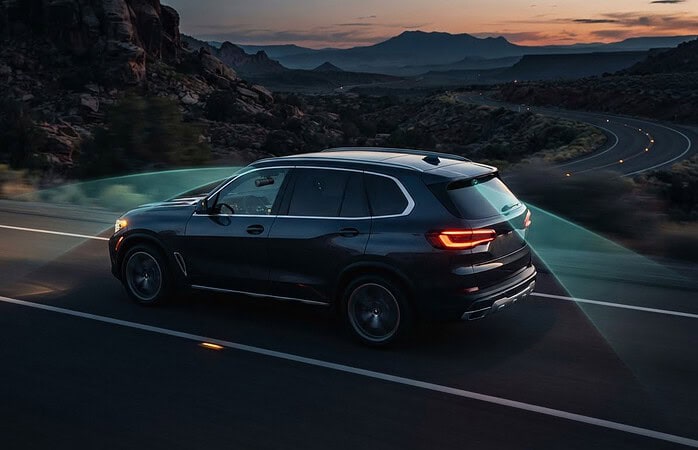
A detected event isn’t the same as a guaranteed recording of every collision or approach. Sensitivity settings affect whether movement or an impact crosses the camera’s trigger threshold. Placement matters too: a windshield-mounted front camera sees a different area than a system with additional cameras. Nearby traffic, reflections, obstructions, and activity outside the camera’s view can all affect what gets detected or captured.
What parking mode cannot guarantee
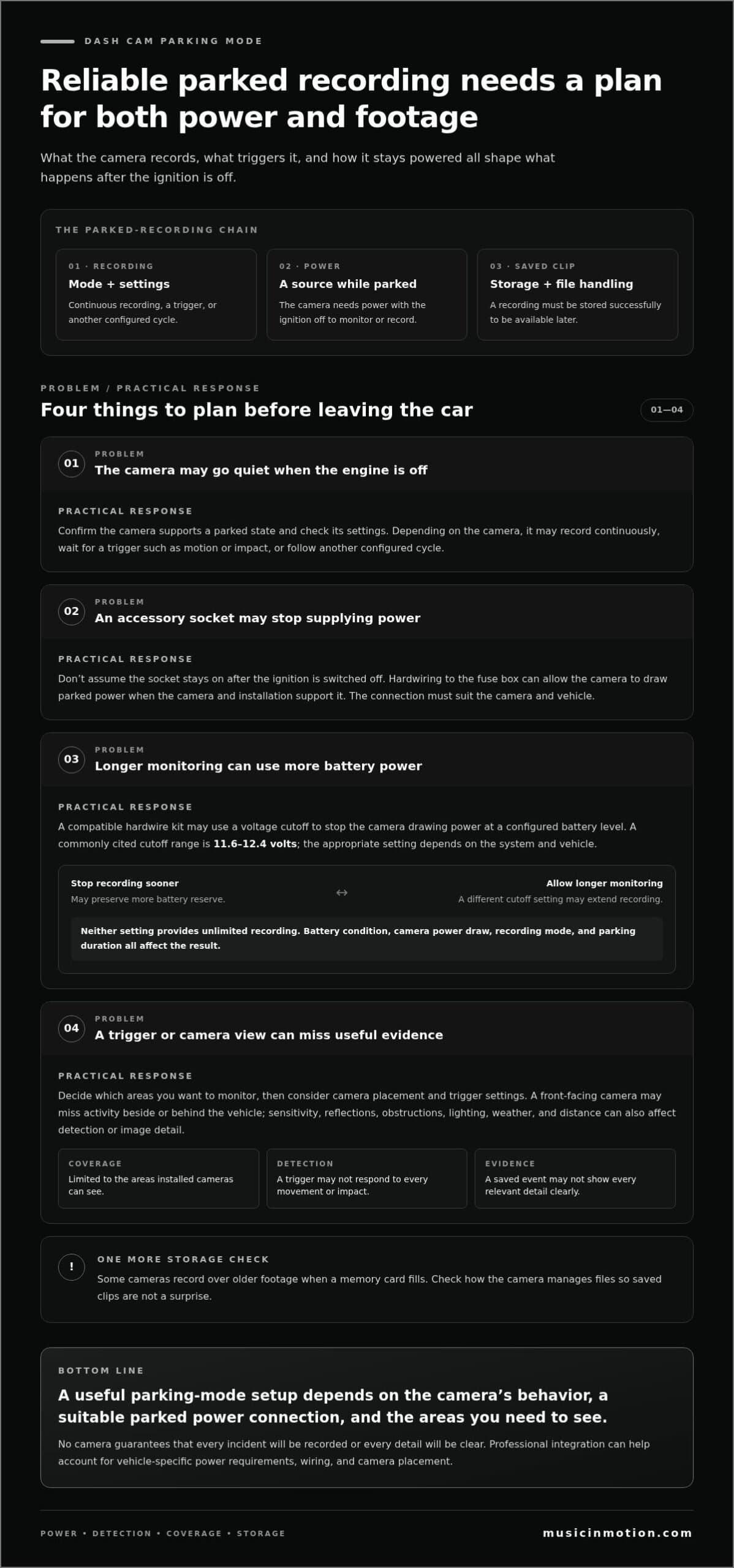
A dash camera can document only what its lens can see, and coverage is limited by camera position and viewing direction. A front-facing camera may capture activity ahead of the vehicle while missing an incident beside or behind it. Even if footage captures an event, it may not show enough detail to identify a person, vehicle, or license plate clearly. Lighting, weather, distance, and obstructions can all affect image quality.
- Coverage: Footage is limited to the areas the installed cameras can view.
- Detection: A trigger may not respond to every movement or impact.
- Evidence: Recording an event doesn’t ensure every relevant detail will be visible.
Parking mode doesn’t prevent damage or identify every person or vehicle. Start by deciding which areas you want to monitor, then consider whether the camera placement and recording behavior support that goal. A well-planned setup can provide useful context, but no camera can promise that every incident will be recorded or every detail will be clear.
How dash cam parking mode records and manages power
Parking mode follows a simple cycle, though the details vary by camera and setup. When the vehicle is switched off, the camera enters a supported parked state. It may record continuously, capture footage after a trigger, or follow another configured cycle. When it detects an event, it may save the relevant clip to its memory card. Depending on the camera’s settings, it may return to driving mode automatically when the vehicle starts again.
Saved footage takes up storage space. Some cameras record over older footage when a memory card fills, so check how the camera manages files to avoid surprises. A clip can be saved only if the camera has power, the mode is operating as intended, and the recording is stored successfully.
Parked recording duration depends on available power and camera settings. A camera needs a power source after the ignition is switched off if it’s expected to monitor or record. The power connection matters as much as the recording mode. General transportation research, such as the U.S. Department of Transportation’s Vehicle Detection and Surveillance Technologies report, provides broader context on how detection and surveillance systems depend on their equipment and operating conditions.
Where does a dash cam get power while parked?
One option is hardwiring the camera to the vehicle’s fuse box, which can allow it to draw power with the ignition off when the camera and installation support that setup. Other arrangements depend on the camera and vehicle. An accessory socket may switch off with the ignition, so don’t assume it will provide ongoing power. The connection needs to suit both the camera’s requirements and the vehicle’s electrical system.
How battery protection affects recording
A compatible hardwire kit may include a voltage cutoff that stops the camera drawing power when the vehicle battery reaches a configured level. This can limit discharge, but it also means recording may stop before the battery falls below that threshold. Cutoff settings and safeguards vary across equipment and installations. A commonly cited cutoff range is 11.6 to 12.4 volts, but the appropriate setting depends on the particular system and vehicle.
Consider the trade-off: a setup configured to stop recording sooner may preserve more battery reserve, while a different setting may allow longer monitoring. Neither option enables unlimited recording. Battery condition, camera power draw, recording mode, and parking duration all affect the result. Professional integration can account for vehicle-specific power requirements, wiring, and how you want the camera to operate. Music In Motion’s dash camera integration brings those details together in a tidy installation.
Event-triggered, time-lapse, or continuous: compare parking modes
Parking modes balance detail, storage, and power in different ways. These options aren’t universal: availability and operation depend on the camera, its settings, and its power arrangement. Use the comparison as a guide, then check how a specific camera implements its supported modes. The Automotive Safety Council offers broader context on automotive safety technologies. The comparison below focuses on what each parking approach can mean for your footage.
| Mode | Trigger | Recording pattern | Useful context | Trade-off |
|---|---|---|---|---|
| Event-triggered | Supported motion, impact, or another configured event | Starts or protects a clip around a detected event | Parking areas where you mainly want footage of detected activity | May miss events below its detection threshold; can also save unwanted clips |
| Time-lapse | A configured recording cycle, not necessarily an incident | Captures frames at intervals and condenses activity into a sequence | Longer parking periods when a broad overview matters | Fast events may be harder to follow, and detail between frames is absent |
| Continuous | No event trigger is needed while recording is active | Ongoing video capture while the mode has power | Situations where you want a fuller timeline of activity in view | Can use more power and storage than less frequent recording approaches |
Event-triggered recording for detected activity
With a supported event-triggered mode, the camera waits in a monitoring state and responds when its motion or impact detection registers activity. Depending on how it works, it may start a clip or protect relevant footage from being overwritten. This can keep saved files focused on detected events instead of recording every moment. The trade-off is sensitivity: a subtle bump may not trigger a clip, while passing movement or vibration may create recordings you don’t need.
Time-lapse and continuous recording compared
Time-lapse combines a longer span of activity into a shorter sequence by capturing frames at intervals. It can use less storage and power than ongoing video, but it won’t show every moment between captured frames. Continuous recording, when supported and adequately powered, provides more uninterrupted context. It may require more storage and power, and saved footage still depends on the camera’s file-management settings.
Choose a mode based on what you want the footage to show. If you park for extended periods and need a general overview, time-lapse may suit that goal. If you’re most concerned about detected bumps or movement, event-triggered recording may be a better fit, provided the camera’s detection meets your needs. Continuous recording may be preferable when you want a fuller timeline and power and storage allow it. The key is balancing coverage, parking duration, and the detail you’d want to review later.
How to plan a reliable dash cam parking-mode setup
A dependable setup starts with your parking routine, not a feature list. Think about where the vehicle usually sits, how long it’s left unattended, and which areas you want recorded. A car parked for brief stops in a busy area may have different needs from one left for long stretches in a driveway. Those priorities help narrow down the recording mode, camera coverage, and power approach.
Use this sequence to plan the setup:
- Define your parking needs. Note usual parking locations, typical unattended periods, and the activity or areas you most want to capture.
- Check supported modes. Review the camera’s instructions to see which parking modes and triggers it supports. Don’t assume every camera offers every recording option.
- Plan the power connection. Choose an approach that can supply power with the ignition off and suits the vehicle’s electrical system. Consider how battery protection is handled.
- Configure recording and storage. Set the supported mode and detection options, and use a memory card that meets the camera’s stated requirements.
- Test the finished setup. Confirm that parking mode starts, clips save as expected, and the camera returns to its driving behavior when the vehicle is started.
Match camera behavior to your parking routine
Frequent short stops may call for a different balance of coverage and recording than long unattended parking. Consider whether passing traffic or pedestrians are likely to create frequent triggers, and whether an impact could come from the front, rear, or side. Decide which views matter most before choosing settings. Camera placement limits what can be captured, so broad coverage may require more than a front-facing view if the system supports additional cameras.
Configure and test before relying on footage
After installation, switch off the vehicle and verify that the camera enters its intended parking state. Review sample clips rather than assuming an indicator or setting alone proves it’s working. Check that timestamps are correct, the desired areas are visible, and detected events are saved as expected. Test again after adjusting settings or camera position.
Storage is part of the plan. Confirm the memory card’s capacity and type meet the camera’s specifications, then review how the camera handles a full card and protected clips. Check storage status and battery-protection settings according to the equipment instructions. Power, recording, and storage all need to work together for parking mode to be useful.
Vehicle electrical systems and camera power requirements vary, so installation is vehicle-specific. Music In Motion integrates dash cameras with vehicle systems, including power routing and camera placement, with the finished setup in mind. Plan your dash camera installation around your vehicle and parking needs.
When professional dash cam installation makes sense
Parking mode brings together camera placement, recording settings, and a power connection that works while the ignition is off. If wiring or configuration feels unfamiliar, professional installation can bring those pieces together in a considered, tidy setup. The goal is more than mounting a camera: it’s integrating the equipment with the vehicle so its supported parking behavior can operate as intended.
Vehicle-specific electrical integration matters because power connections and camera requirements vary. The setup needs to account for how the camera receives power when the vehicle is off and how any supported safeguards are configured. A connection that doesn’t provide ignition-off power won’t support parked recording as expected. Placement matters too. A poorly positioned camera may capture less of the area you want or interfere with a clear driver view.
What an integrated installation should account for
A well-planned installation balances useful coverage with a clear view from the driver’s seat. Camera position should match the areas you want recorded, while power wiring should be routed neatly with the vehicle’s installation needs in mind. The setup should also reflect the camera’s supported parking mode and power safeguards, rather than assuming every camera works the same way.
Testing is part of the finished setup. Confirm the camera enters its intended parked state, saves footage as expected, and resumes driving behavior when the vehicle starts. Reviewing sample clips can show whether the view is useful and the selected settings suit your routine. These checks can catch configuration or placement issues before you rely on the footage.
A practical next step for your vehicle
Professional integration can be especially helpful if you’re planning ignition-off recording, want a discreet wiring finish, or aren’t sure how your vehicle’s power system and camera requirements fit together. Music In Motion provides dash camera integration and custom installation, with attention to the complete setup rather than the hardware alone.
As you consider your options, make a short list of where you park, how long the vehicle is usually unattended, and which camera views matter most. That gives the installation plan a clear starting point. Explore Music In Motion’s dash camera installation service for a setup tailored to your vehicle and parking needs. For a broader look at aftermarket safety upgrades, the Vehicle Safety Systems Roundup: Essential Aftermarket Upgrades for 2026 offers related context alongside this guide.
Make your next step a setup that fits
Your next move doesn’t have to be choosing the most complex camera or recording option. Start with one practical question: what would you want to understand if you found your vehicle damaged after parking? Your answer can guide the camera views, recording behavior, and power approach to consider for your daily routine.
Use this guide to turn that priority into a clear installation plan. If wiring, camera placement, or ignition-off power feels unfamiliar, professional integration can bring the pieces together in a neat, vehicle-specific setup. Music In Motion offers dash cameras and professional integration of vehicle safety technology.
Explore professional dash camera installation and take the next step toward a setup designed around your vehicle and how you park. A thoughtful plan can make advanced technology feel straightforward, practical, and ready for everyday use.
Frequently Asked Questions
Can a dash cam with parking mode drain my car battery?
Yes, parking-mode recording can use power from the vehicle battery and may contribute to discharge. The effect depends on the camera’s power draw, settings, battery condition, and how long the vehicle remains parked. Some power setups use a voltage cutoff to stop recording at a configured point, but that doesn’t eliminate battery use. If you regularly leave your vehicle parked for extended periods, follow the camera and power kit instructions and monitor how the setup behaves.
Does parking mode work without hardwiring a dash cam?
Sometimes, but it depends on the camera and available power source. A hardwire connection is one way to provide power after the ignition is off. Another connection may work if it supplies power in that state, but don’t assume an accessory socket stays on after you leave the vehicle. When comparing cameras, pay attention to the power requirements as well as the recording features.
How long can a dash cam record while the car is parked?
There’s no single recording duration that applies to every setup. A camera’s power demand, selected mode, vehicle battery condition, available storage, and any cutoff setting can all affect how long it operates. For example, a vehicle parked overnight may have different power and storage needs from one left unused for several days. Check the camera’s stated requirements, then test the setup during a typical parking period before relying on it.
Will parking mode record if someone hits my parked car?
It may, if the camera supports impact detection, has power, and the impact triggers its configured response. A light scrape may not register, while a camera facing away from the damage may not capture useful context. After installation, review a test clip to see which areas are visible and how the camera saves detected events. Treat the footage as a possible record of what happened, not a guarantee that every collision will be captured.
Can a dash cam record in a dark parking garage?
It can record in a garage if the camera remains powered, but darkness can limit how much detail the footage shows. The result depends on the camera’s low-light performance, available lighting, and how far activity is from the lens. A dimly lit space may show movement without clearly revealing identifying details. Review a sample recording in the same garage, at the time you usually park, to judge whether the image meets your needs.
Does parking mode work in extreme hot or cold weather?
It depends on the camera’s operating-temperature specifications and the conditions inside the parked vehicle. Heat or cold can affect electronic equipment and may influence whether a camera operates as expected. Check the manufacturer’s stated temperature limits for the camera and any power components, and follow their guidance for use and storage. If your vehicle routinely sits in severe temperatures, account for that when planning the setup rather than assuming every dash camera handles the same conditions.
Can I use parking mode with an electric vehicle?
It may be possible if the camera’s power requirements and the vehicle’s electrical setup are compatible. Electric vehicles can differ in how accessory power behaves after shutdown, so don’t assume a familiar connection will stay active or operate as expected. A vehicle-specific installation can account for the camera’s power needs and the vehicle’s systems. Plan the setup around the vehicle’s instructions, and test that parking mode starts and stops correctly.
Do all dash cams include motion detection or time-lapse parking mode?
No. Parking features vary by camera, and motion detection or time-lapse recording shouldn’t be assumed to come standard. Some models may support one approach but not another, or offer different behavior depending on their settings and power connection. Check the specific camera’s feature list and instructions before choosing it for a particular parking routine. Also confirm what the selected mode saves, since a feature label alone may not explain its recording pattern.