Start with the exact model of your radar detector. To learn how to update radar detector software, download the updater or file intended for that model, then follow the instructions using a compatible computer and connection cable. Keep the detector connected until the update is complete.
An update may look like a simple download, but the software and connection method vary by detector. Using the wrong file or interrupting installation can cause problems. This guide covers the equipment and software you may need, how to download and install an update, and what to try if the updater won’t open or the process stalls. It also explains why a reset may be recommended after a firmware update and when professional help with a radar and laser defense system can simplify your next step.
Key Takeaways
- Match the update file and updater to your detector’s exact model before starting.
- Prepare a compatible computer, connection cable, and required software so the installation can run without interruption.
- Use the detector’s display or settings to find its model and firmware version, then follow the update instructions for that device.
- Check for software and database updates based on your detector’s update process, and consider professional help if installation becomes complicated.
Downloading and installing update software
Choose the updater and firmware for your detector’s exact model. When learning how to update radar detector software, match every file to that model and follow the installation prompts. Keep the connection steady until the update finishes.
-
Identify the Detector Model
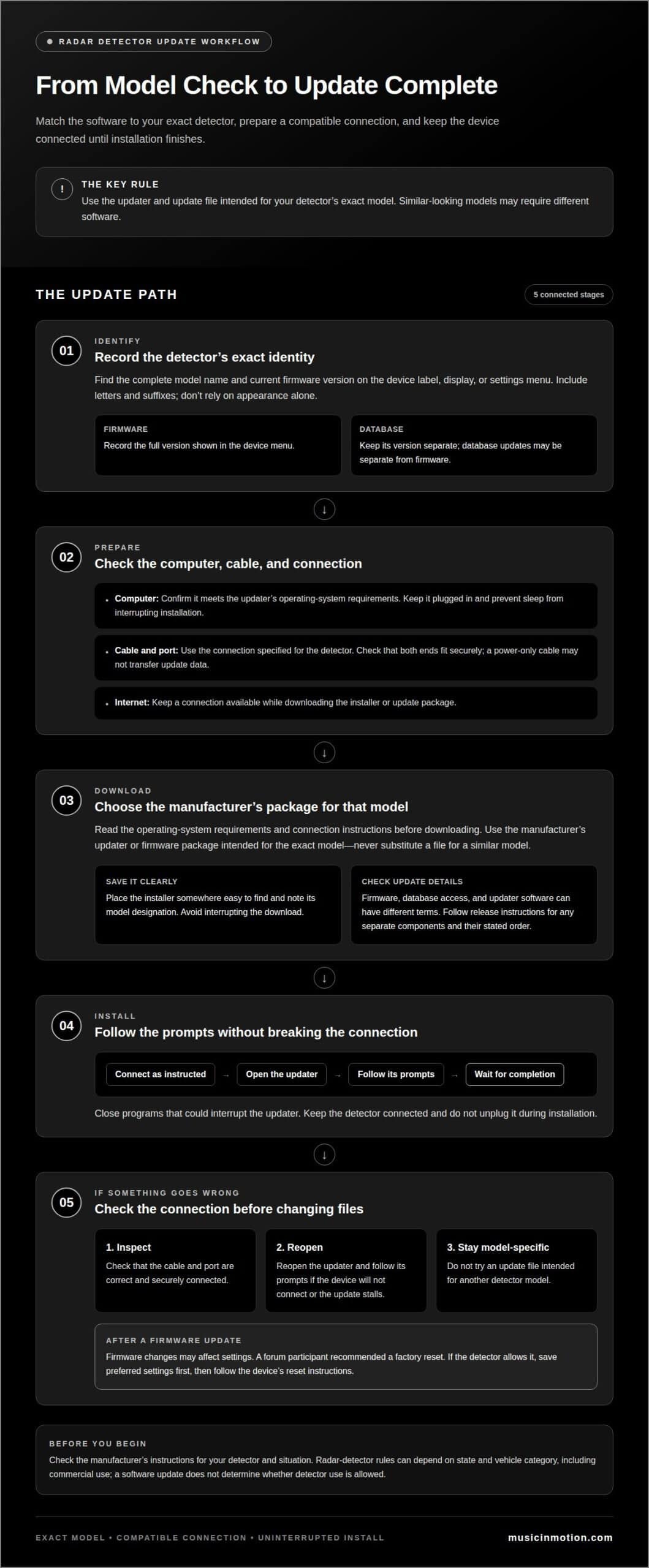
Find the model name and current firmware version on the detector’s label, display, or settings menu. Record both before choosing an update; similar-looking models may use different software. If the menu shows a version, compare it with the update information for that exact model. Don’t rely on appearance alone.
Radar-detector rules can depend on your state and vehicle category, including commercial use. Check the requirements that apply to your situation before using a detector. A software update doesn’t determine whether detector use is allowed.
-
Download the Update Software
Choose the manufacturer’s updater or firmware package for your detector model. Before downloading, read the operating-system requirements and connection instructions. Don’t use files intended for another model, even if its name looks similar. Save the installer somewhere easy to find, and avoid interrupting the download.
Update terms depend on the manufacturer and the type of update. Firmware, database access, and updater software may each have different terms. Review the download or account screen before proceeding instead of assuming every update works the same way.
-
Install the Software Update
Connect the detector with the cable and port specified in its instructions, then open the updater. Follow the prompts and don’t unplug the device during installation. A Mac updater was reported to work on macOS Sequoia, though opening its installer required a permissions change.
If the update fails or the detector won’t connect, check the cable, reopen the updater, and follow its prompts. Don’t install a file for another model. These first steps can help you update radar detector software without disrupting an installation in progress.
Firmware changes may affect settings. A forum participant recommended a factory reset after a firmware update. If the detector allows it, save your preferred settings first, then follow the device’s reset instructions.
Required equipment and software
- Use a computer that meets the updater’s operating-system requirements. Check the installer instructions before downloading, because compatibility can vary by detector model and software release. Keep the computer plugged in and prevent sleep settings from interrupting installation. A desktop or laptop will work only if it supports the manufacturer’s updater.
- Prepare the connection cable specified for your detector. Check that both ends fit securely and use the correct computer port or adapter. A power-only cable may not transfer update data. If the updater can’t detect the device, inspect the connection before trying another file or restarting the installation.
- Use the manufacturer’s updater or download package for the exact detector model. Some updates require a computer program; others use a file transferred to the device. Read the release instructions to identify the right method. Don’t substitute software for a similar model, even if the names look nearly identical.
- Keep an internet connection available while downloading the installer or update package. Save the file somewhere easy to find, such as your downloads folder, and note its model designation. If the update has separate firmware and database components, follow the stated order rather than assuming one replaces the other.
- Close programs that could interrupt the updater, then launch it using the computer’s normal installation process. Leave the detector connected until the program reports completion. If you prefer help with the vehicle’s equipment setup, radar and laser defense systems are a related option to explore.
How do I identify my radar detector model and current firmware version?
- Start with the detector’s label or original packaging. Record the complete model name, including letters or suffixes, because similar model names can require different update files. If the packaging is gone, check purchase records or the device menu. Don’t rely on appearance alone; different product versions can have similar housings.
- Open the detector’s settings or information menu to find its firmware version. Look for labels such as “firmware,” “software,” or “version.” Menu names vary, so consult the device instructions if the version isn’t clear. Write down the complete sequence of numbers and letters. A partial version can make comparisons unreliable.
- Keep firmware and database information separate. Firmware runs the detector’s internal software, while a database may update separately. If the display shows both versions, record each under its own label. For example, don’t mistake a database date for the firmware version when selecting an update package.
- Use the updater’s device-information screen as another identification check. Connect the detector as directed, then see whether the program displays the model and installed version. Compare those details with the label and menu. If they differ, pause rather than choosing a file based on only one identifier.
- Before downloading, note the model name, firmware version, and any separate database version. Copy the exact characters shown, including letter suffixes and decimal points. Then compare the model and installed version with the updater’s information. This helps distinguish a compatible update from software intended for another detector.
How often should radar detector software and databases be updated?
- Start with the manufacturer’s update schedule. There’s no single interval that fits every detector because release timing and update methods differ. Check the updater or device instructions for available firmware and database releases. If the program identifies a compatible update, read its release details before installing.
- Treat firmware and location databases as separate update types. Firmware changes the detector’s internal software, while a database may contain location information. A firmware release doesn’t automatically mean the database has changed, or vice versa. Review each component’s version or release information separately to see what the update covers.
- Build updates into a practical routine without setting an arbitrary monthly or weekly schedule. For example, open the manufacturer’s updater before a long trip and review the available releases. This is a useful checkpoint, not a guarantee that new data will be available. Install only packages identified for your detector model.
- Consider how you use the detector. Drivers who travel unfamiliar routes may value current database information more than those who usually drive familiar roads. However, travel frequency doesn’t determine the release schedule. The manufacturer’s available updates and your detector’s compatibility determine what you can install.
- Keep a simple record of the last installed firmware and database versions. When the updater reports a newer compatible release, compare the displayed version with your notes. If no update appears, don’t reinstall an older package just to create activity. For help planning a vehicle setup, explore radar and laser defense systems.
Music In Motion: Radar and Laser Defense Systems
Music In Motion offers radar and laser defense systems for drivers planning a vehicle technology upgrade. If you’re choosing a system or considering how it will fit your vehicle, a custom installation can bring the equipment together in a finished setup. Firmware and database updates still depend on the detector model and manufacturer’s instructions, so follow those directions.
Turn to Music In Motion when you’re selecting or installing radar and laser defense equipment, rather than downloading an update file. We also provide custom installations across vehicle types, with attention to how the system fits your setup and everyday driving needs.
Contact Music In Motion to discuss radar and laser defense systems for your vehicle.
Make Your Next Vehicle Upgrade Fit
Knowing how to update radar detector software is a useful starting point, but you may also need to consider how the equipment fits your vehicle. A detector is one part of a larger in-vehicle setup. If you’re planning other upgrades, think about how the finished installation should work with your driving routine and existing electronics.
Music In Motion offers custom installations and radar and laser defense systems. Our work also includes car audio upgrades and marine audio systems, so your next project can focus on the vehicle and experience you want to improve. The right direction depends on your goals, whether you’re refining your driving setup or planning a broader upgrade.
Ready to discuss a project? Contact Music In Motion about your vehicle upgrade, and take the next step toward a setup built around your needs.
Frequently Asked Questions
How do I update radar detector firmware using a computer or mobile app?
Use the computer updater or mobile app specified for your detector model. If the manufacturer provides an app-based process, install its official app and follow the pairing and update prompts. Otherwise, use the computer method in the detector’s instructions. Don’t switch methods during installation. Follow the updater until it confirms the process is complete and the firmware has been applied.
Where can I download official radar detector software updates?
Download updates from the detector manufacturer’s official support or software page. Start with the complete model name, then choose its matching update package or updater. A model suffix, for example, can distinguish similar-looking devices that need different files. Avoid pages that don’t identify the manufacturer and detector model, and never install a package intended for another device.
What cables, apps, or subscriptions are needed to update a radar detector?
The required cable, updater, app, or account access depends on the detector and update type. Check the model’s instructions for the connection method and required computer software. Database and firmware updates may have different access terms. Before starting, identify whether the process calls for a cable, mobile app, or account login, and prepare what it requires.
How do I update radar detector GPS and speed-camera databases?
Use the detector manufacturer’s database updater or app, if one is provided for your model. Select the GPS or speed-camera database option instead of assuming a firmware update includes it. Follow the prompts, then check the displayed database version or update status. If the updater offers separate database categories, select the relevant one and complete its instructions before disconnecting the detector.